
How to make a logo mockup
- Upload the logo. Click Upload your logo, drop the file on the box or paste it. An SVG or a PNG with a transparent background works best. If you only have a JPG on white, tick Remove white background.
- Pick a scene. The thumbnails show your own logo in every scene, so you can see at a glance where it holds up and where it struggles.
- Adjust the material and the version. Change the color of the paper, fabric, wall, ceramic or vinyl, and choose the original, dark or light version of the logo. Automatic picks the version with enough contrast for the surface.
- Place it. Drag the logo on the preview, or use the sliders, to move and resize it. Each scene remembers its own settings.
- Download. Export the scene as a PNG at up to 3200 × 2400 pixels, or all nine scenes in one .zip file.
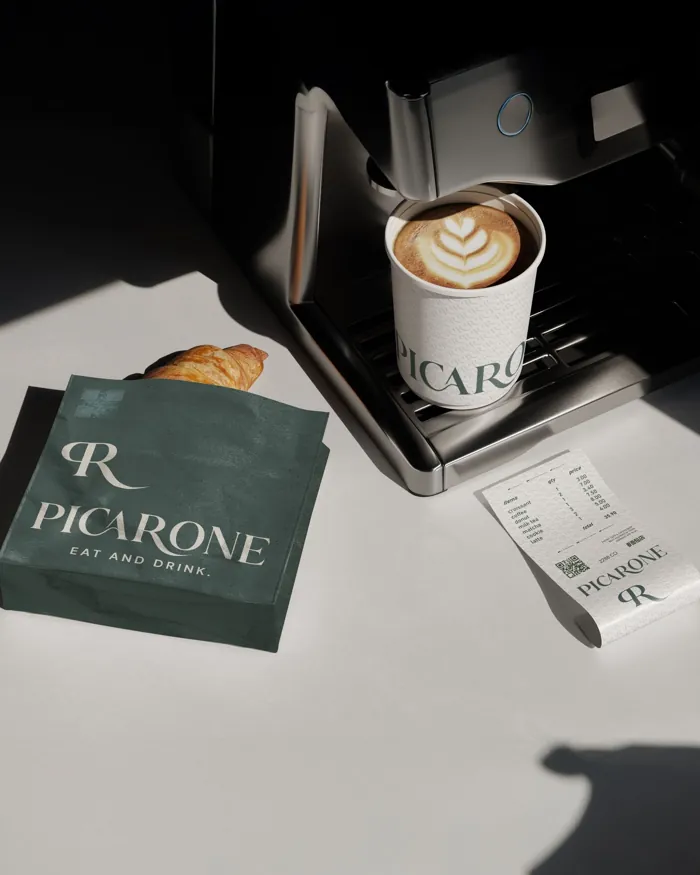
Whether you write it mockup, mock-up or mock up, the idea is the same: a realistic preview that shows how a design will look once it is made. For a logo, that means real objects, real materials and real light, not a white artboard.
The nine scenes and what each one tests
Each scene is there for a reason. Between them they cover the situations where logos usually fail: small sizes, dark backgrounds, one color only, rough surfaces and distance.
| Scene | What you see | What it tests |
|---|---|---|
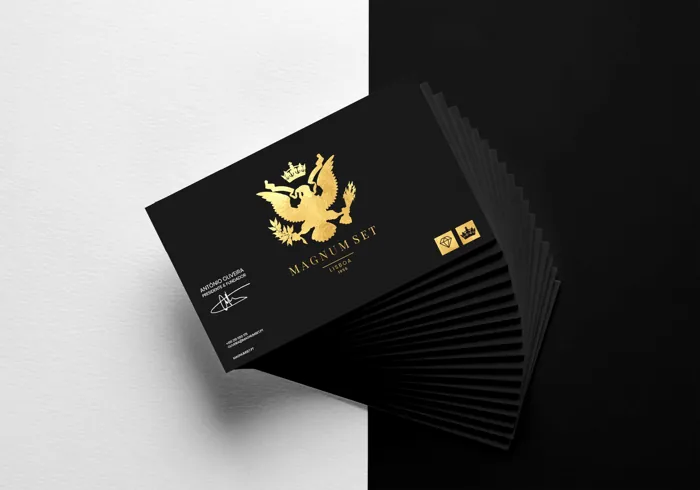
| Business cards | Two stacks of cards photographed in perspective, in five paper colors or your own | Legibility at under 2 inches wide, and how the logo sits on kraft or dark stock |
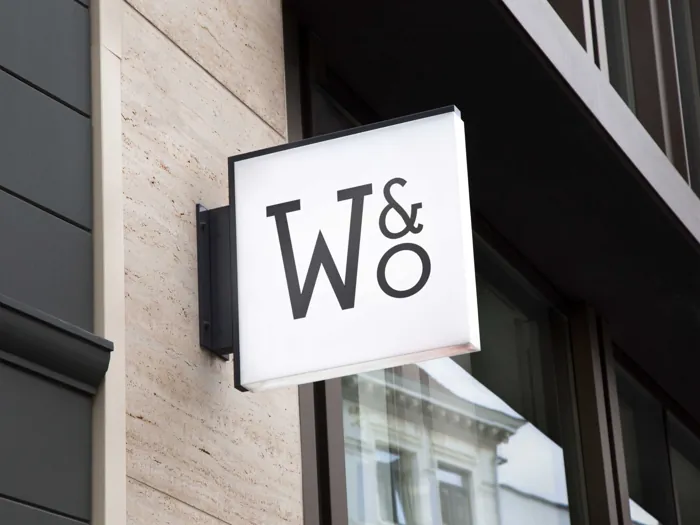
| Sign on a wall | The logo as raised letters on a street facade, with a cast shadow from the sun | Whether the shape reads from a distance and survives being cut out letter by letter |
| Tote bag | A print on a cotton bag, distorted by the weave and the folds | Fine lines and small text on a rough, uneven surface |
| Mug | The logo wrapped around a ceramic mug, with the glaze highlights of the photo | Wide logos on a curved surface, where the ends turn away from view |
| Phone screen | An app splash screen on a phone lying on a desk, with the background color of your choice | The logo as an app or social profile would show it, in light or dark mode |
| Letterhead and envelope | A letterhead, a card and a kraft envelope seen from above | The logo next to text at document size, and on a brown envelope |
| Engraved wood | A laser engraving on a wooden board, with the grain inside the cut | The one color version: an engraving has no color, only shape |
| Engraved metal plate | An engraved plate in steel, brass, copper or anodized aluminum, screwed to a wall | Thin details on a reflective surface, as on a door plaque or a product badge |
| Shop window vinyl | Vinyl lettering on the glass of a clothing store, with reflections from the street | A single color logo over a busy background, and whether it still reads |
Eight scenes are photographs, with the logo placed on the real surface. The metal plate is drawn by your browser, so its material and color can change freely.
Which logo file to upload
The file decides how clean the mockup looks, especially at the larger export sizes.
- SVG. The best choice. A vector file has no fixed resolution, so the tool draws it at 2,000 pixels on its longest side, enough for sharp edges at every export size.
- PNG with a transparent background. Also very good, as long as it is at least 1,000 pixels wide. A small PNG looks soft when the logo fills a wall or a bag.
- JPG on white. It works with Remove white background ticked: white turns transparent and light grays fade out, so check the edges on a dark material.
- A logo on a colored background. The background shows as a rectangle in every scene. Export a version without it from your design file, or ask your designer for one.
The tool trims empty space around the logo automatically, so a PNG with a wide transparent margin is fine. Very large files are scaled to 2,200 pixels on the longest side before use, which is still more than the logo needs in any scene.
What a mockup tells you about a logo
A logo is approved in use, not on a white page. A few minutes with the mockups above usually answer the questions that decide whether a logo works:
- Does it read small? Look at the business card and the phone screen. If the name or the symbol turns into a blur at card size, the logo needs a simpler version for small uses.
- Does it need a light version? Switch the card, the mug or the tote to black. If the original colors vanish on the dark material, you need a white or light version, and so will your printer.
- Does it work in one color? The engravings and the window vinyl keep only the shape. If the logo depends on a gradient or on two colors touching, it will lose its meaning when it is engraved, embroidered, stamped or cut from vinyl.
- Is the shape strong from far away? The wall sign shows the logo the way people walking past will see it. Thin strokes and tight letter spacing disappear first.
When a logo fails more than one of these tests, the problem is usually the design, not the mockup. That is the point at which a redesign pays for itself: a logo that has to be explained or adjusted for every new use costs more over time than one built for all of them.
Presenting a logo with mockups
Designers show clients mockups because a logo on a real object is easier to judge than a logo in a PDF. If you are presenting a logo, to a client or to your own team, a few habits help:
- Show the logo where the business will really use it. A restaurant needs the sign and the window; an app needs the phone screen; a consultancy needs the letterhead and the card.
- Show the same logo on light and dark materials side by side, so the light version is approved at the same time as the main one.
- Keep the mockups honest. A logo that only looks good on one flattering photo will not look good on the van.
Once the logo is approved, put the versions, colors and rules in one place with the brand guidelines template, build the color set in the color palette generator, and turn the symbol into a site icon with the favicon generator. If you are budgeting for a new logo or a full identity, the cost calculator lists what agencies charge, with every source.
Methodology and limits
- Where it runs
- Everything happens in your browser. The logo file is read on your device, placed on the scenes with WebGL 2 and the HTML canvas, and saved as a PNG on your device. Nothing is uploaded, and the logo is not stored once you leave the page.
- Perspective
- The corners of each surface in each photo were measured once and stored with the scene. The logo is mapped onto that four-sided shape with a projective transform (a homography), so it shrinks into the distance the way the surface does. The mug uses a cylinder instead: the logo is wrapped around the measured radius, so its ends turn away from view.
- Light and texture
- The logo is not pasted on top of the photo. Each scene has a mask of the printable surface and a reference color for it, measured from the photo. The shading of the photo is divided by that reference to get the light at each pixel, and the logo is multiplied by it, so shadows, folds and highlights fall on the logo as they fall on the surface. The tote bag also shifts the logo along the folds, the wood engraving darkens the cut and adds a lit and a shaded edge, and the window vinyl picks up the reflections of the glass.
- Material colors
- Changing the material recolors only the masked surface: the photo is multiplied by the ratio between the new color and the original one, which keeps its texture and shading. The metal plate is drawn from scratch with a brushed texture, so any color works.
- Logo versions
- Dark and light versions are made by filling the shape of the logo with near black or white. Where a logo has a light counter shape inside a dark one (or the reverse), the tool detects it and keeps it open. Automatic compares the relative luminance of the surface, as defined in WCAG 2.2, with the average of the logo: a dark surface (luminance under 0.2) with a logo averaging under 0.5 gets the light version, a light surface (over 0.55) with a logo averaging over 0.72 gets the dark one, and everything else keeps the original colors.
- Remove white background
- Pixels whose darkest channel is within 10 levels of pure white become transparent, the next 50 levels fade in gradually, and the color of those edge pixels is corrected so no white halo is left. It is ticked automatically when all four corners of a non transparent image are white.
- Export
- PNG at 1600 × 1200, 2400 × 1800 or 3200 × 2400 pixels, all in a 4:3 frame. The two larger sizes use higher resolution versions of the photos, loaded only when you export. If your graphics card cannot handle the size, the export is reduced to the largest size it supports. The .zip holds the nine PNG files, uncompressed, because PNG is already compressed.
- Photos
- The eight scene photos come from Unsplash and are used under the Unsplash License, which allows free commercial use. The preview loads small versions first and the full scene only when you open it.
- Limits
- The photo scenes need WebGL 2, which current versions of Chrome, Edge, Firefox and Safari support. Without it, the tool falls back to simpler drawn scenes. Embroidery, foil and embossing are not simulated. A mockup is a preview: real print, engraving and signage depend on the material, the process and the supplier's proof.
Image credits and usage
- Scene photos. The eight photo scenes are photos from Unsplash, used under the Unsplash License. The metal plate scene is drawn by the tool, not photographed.
- Your logo stays yours. You keep every right to the logo you upload. It is placed on the scenes in your browser and never sent to us or stored.
- The scenes are not exclusive. The same photos are available on Unsplash and are used by other people, so a mockup made here is a preview of your logo, not a unique photograph.
Sources
- Unsplash License, Unsplash, the terms for the scene photos
- Fundamentals of Texture Mapping and Image Warping, Paul Heckbert, University of California, Berkeley, 1989, for the square to quadrilateral projective mapping
- Compositing and Blending Level 1, W3C, for the multiply and screen blend modes
- WebGL2RenderingContext, MDN Web Docs, with browser support
- Relative luminance in WCAG 2.2, W3C, used to choose the automatic logo version